
Analyze items in IQNECT
With IQNECT, you can efficiently analyze tracker items and receive valuable insights on how to enhance their clarity, completeness, and consistency. IQNECT identifies problem areas and provides reworded suggestions to improve the original text. A straightforward rating score, visible at a glance, helps you quickly identify requirements that need attention.
The Analysis UI enables a clear comparison between the original text and improvement suggestions via a full-screen layout that can transition into a detachable popover.
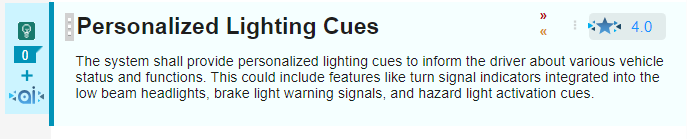
To access analysis, look for a star icon available on the top right of most tracker items in document and issue view, and next to the title in table view. This icon indicates the item's 5-star rating. Click the icon to view additional details explaining the given rating, grouped into various topics:
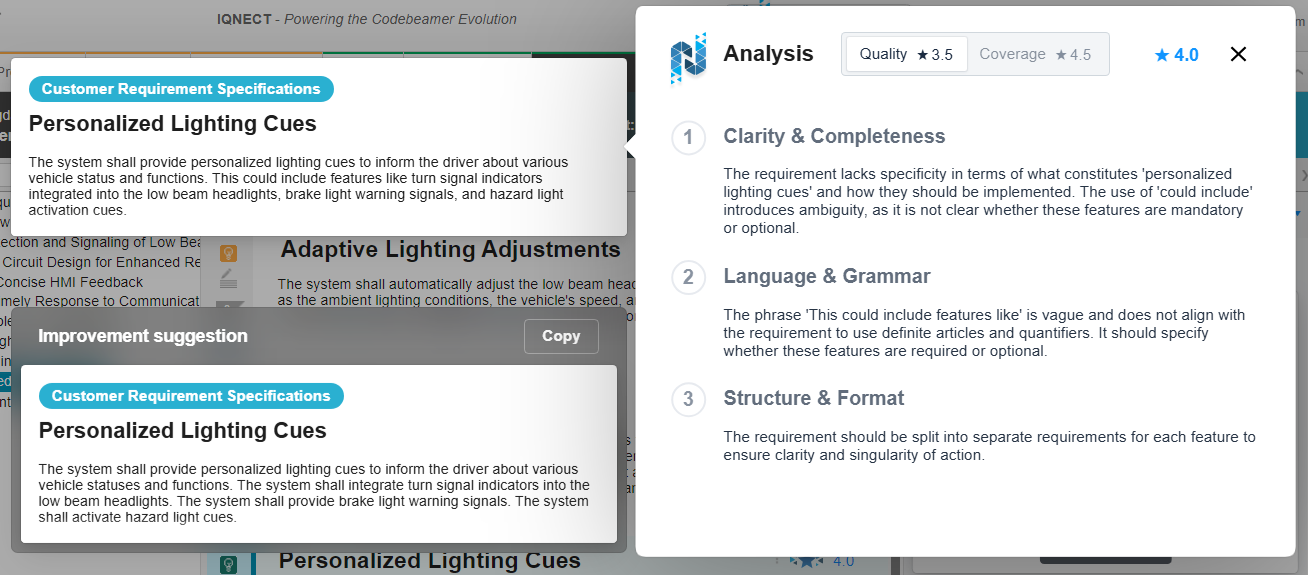
Quality
Refers to how effectively a requirement is articulated in accordance with established standards. This includes clarity, completeness, and adherence to best practices, ensuring the requirement is understandable and actionable.
Example:
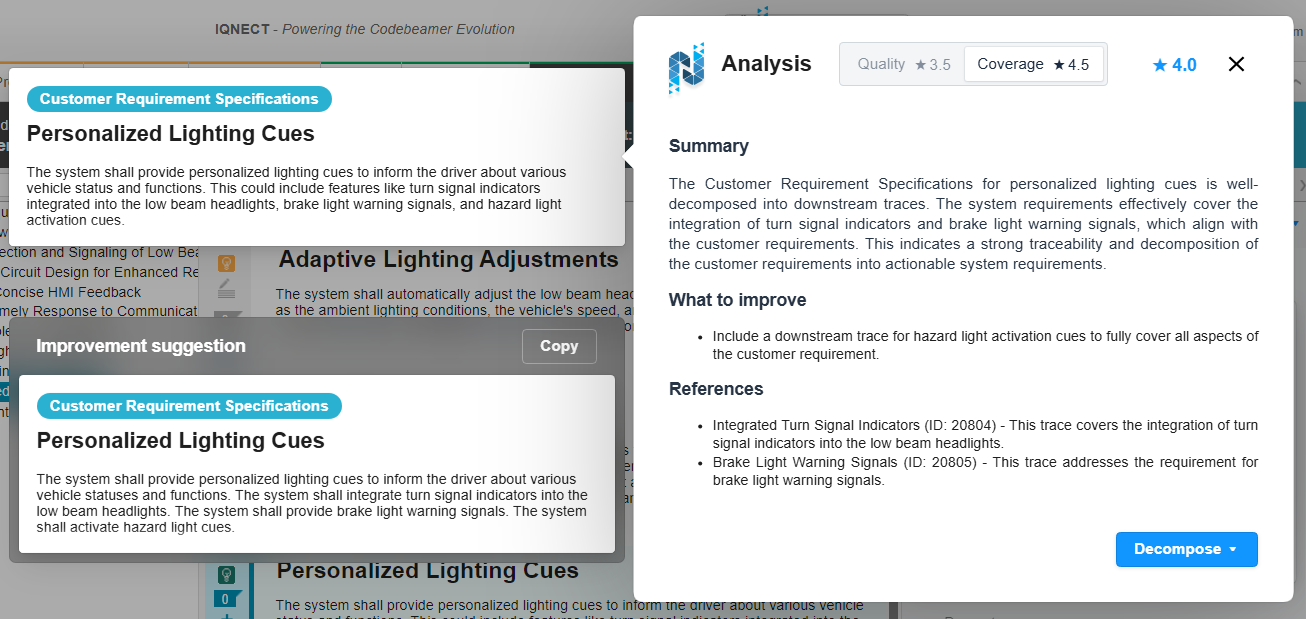
Coverage
Refers to how effectively a requirement is broken down and addressed by subsequent requirements. This ensures that all elements of the initial requirement are considered and implemented in the downstream processes.
Example:
The Analysis window can transition into a detachable popover, and it can be dragged by the user. When the window is detached, the full-screen UI will be closed, and the resources will be displayed in the popover.
Example:
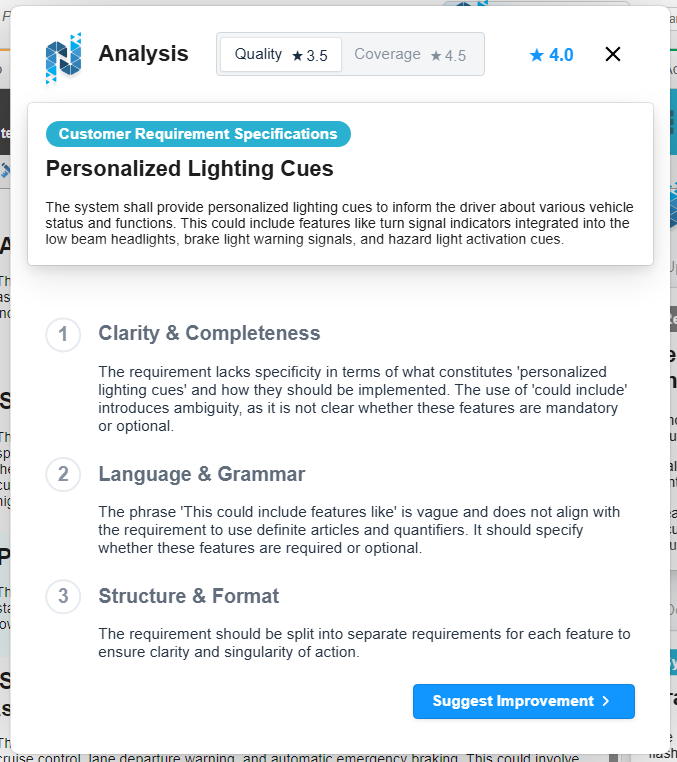
While in the detached state, the user can Analyze multiple other tracker items that can be moved independently.
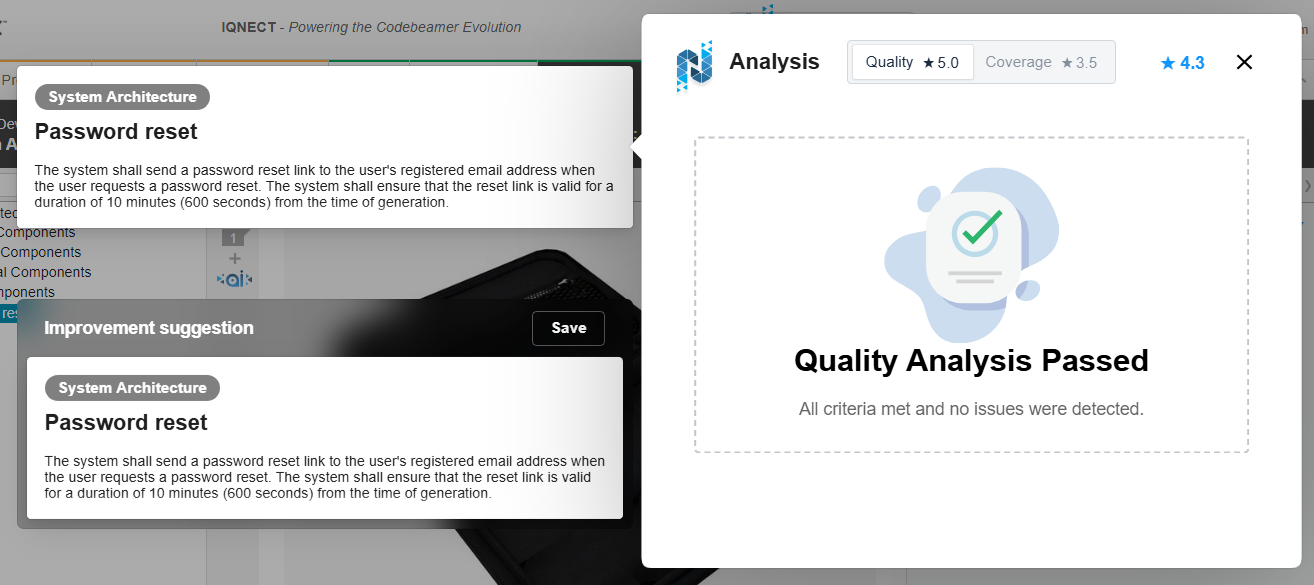
An information message will display, notifying the user that the Quality/Coverage has fully passed and that all criteria have been met with no issues detected.
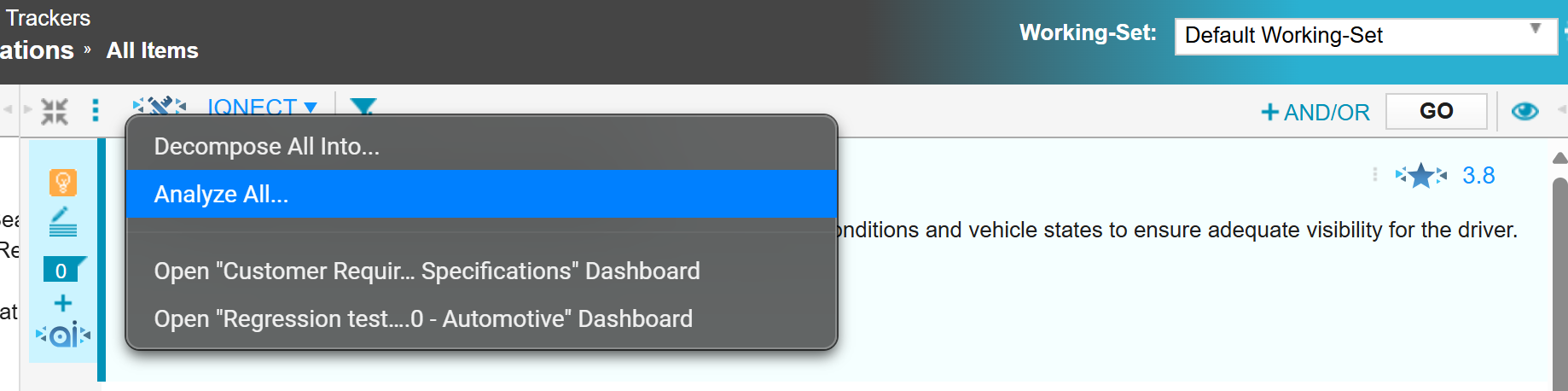
Analyze All
By selecting the IQNECT button, accessible from various tracker views, users can take advantage of the Analyze All feature. This initiates a sequence of steps for each item in the tracker, simulating the process of pressing the "Analysis" button.
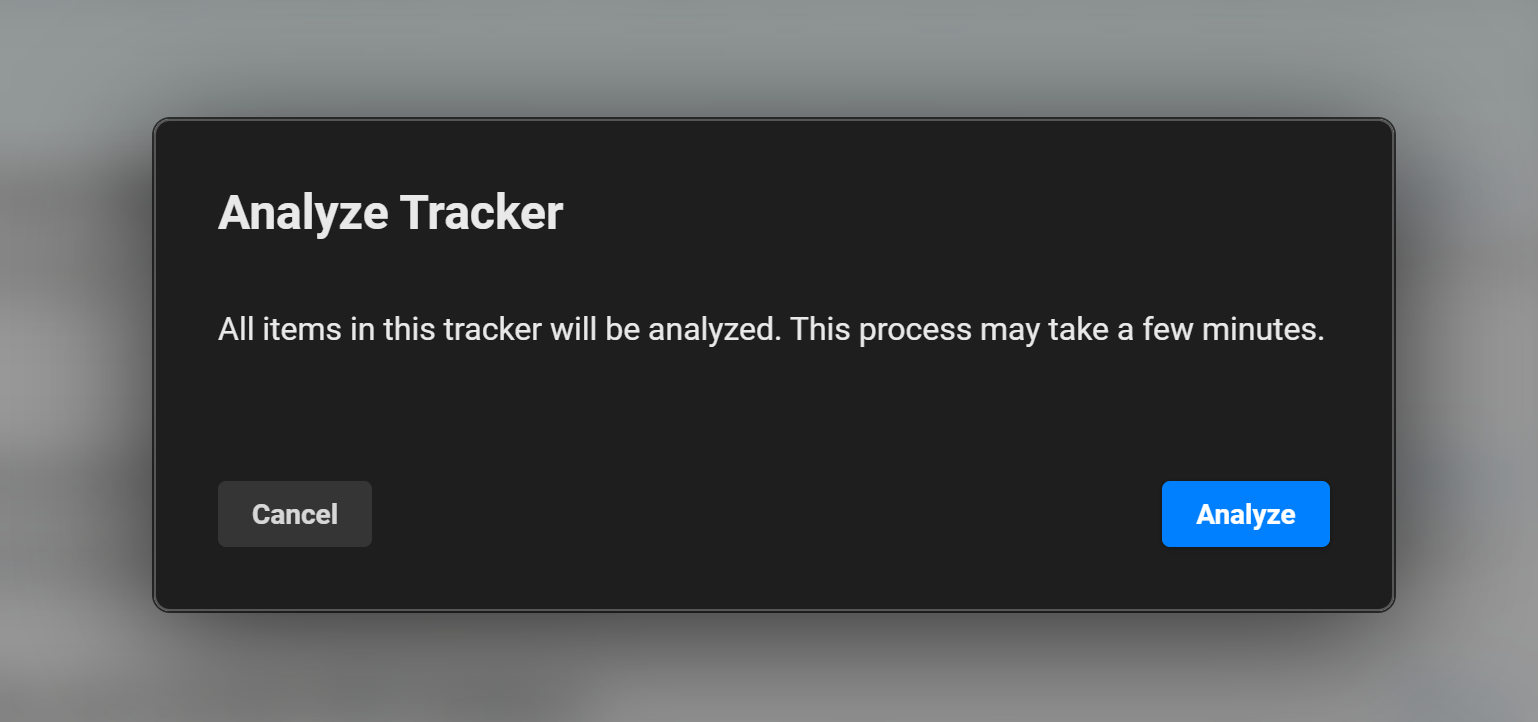
The user is informed that all items in the tracker will be analyzed, and that the process may require some time to complete.
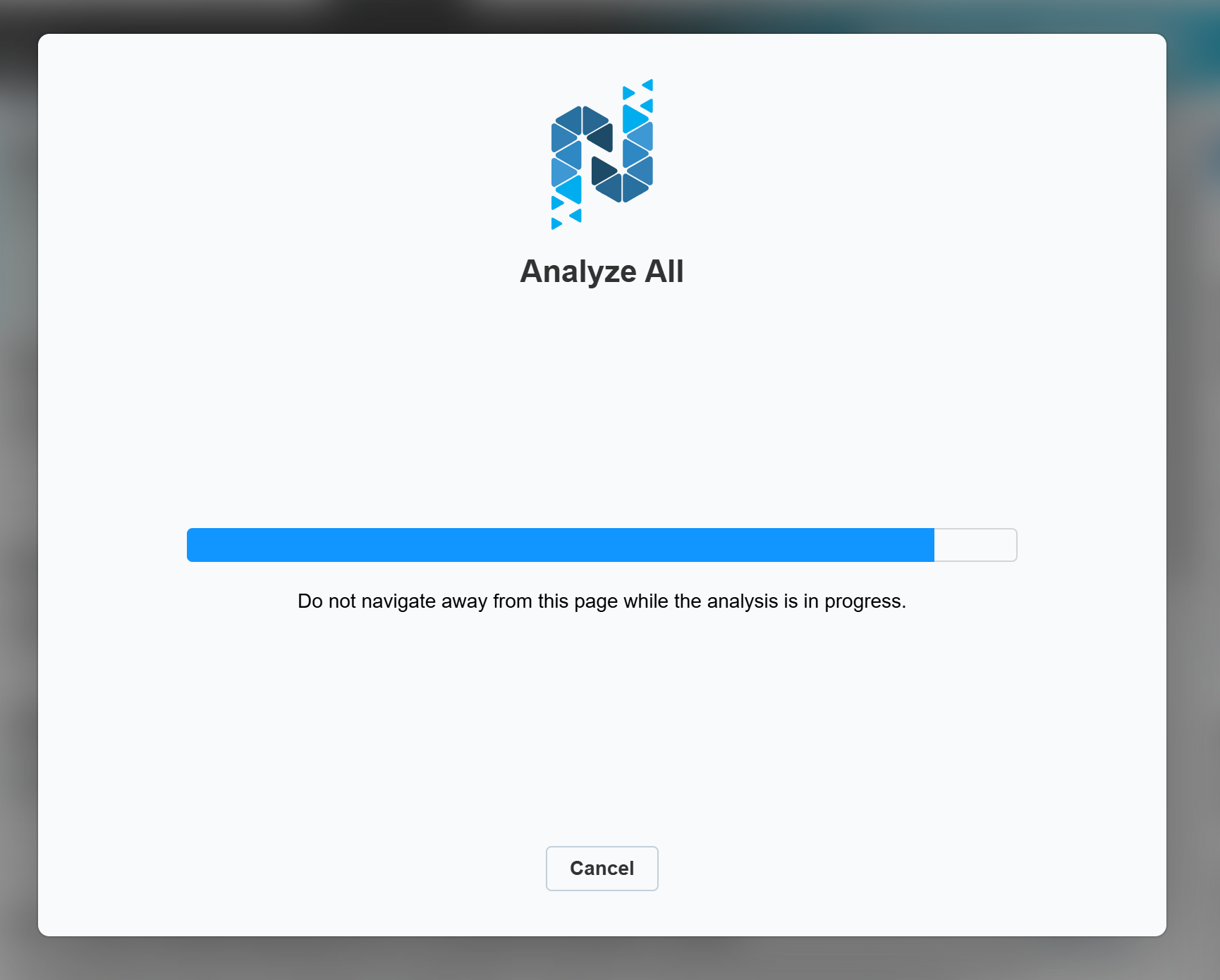
Once the user initiates the Analysis, a new window will be displayed to show the progress of the Analysis. This window will provide real-time updates on the analysis, allowing the user to track its progress and stay informed about the status of the process.
Quality Metric Scoring
Quality metrics are determined using your defined template. The results are calculated using the standards within the template and provide a decimal score ranging from 0.0 to 5.0 in increments of 0.5.
These are the default scoring categories used to calculate metric scores:
- Clarity & Completeness
- Language & Grammar
- Structure & Format
- Defined Terms & Units
- Consistency & Verifiability
Note: Your categories and scores may differ from the default IQNECT categories. The calculations are dependent upon the template configurations. Configuration changes are expected and will impact scoring to meet your organization's standards and needs.