Explore traces in IQNECT
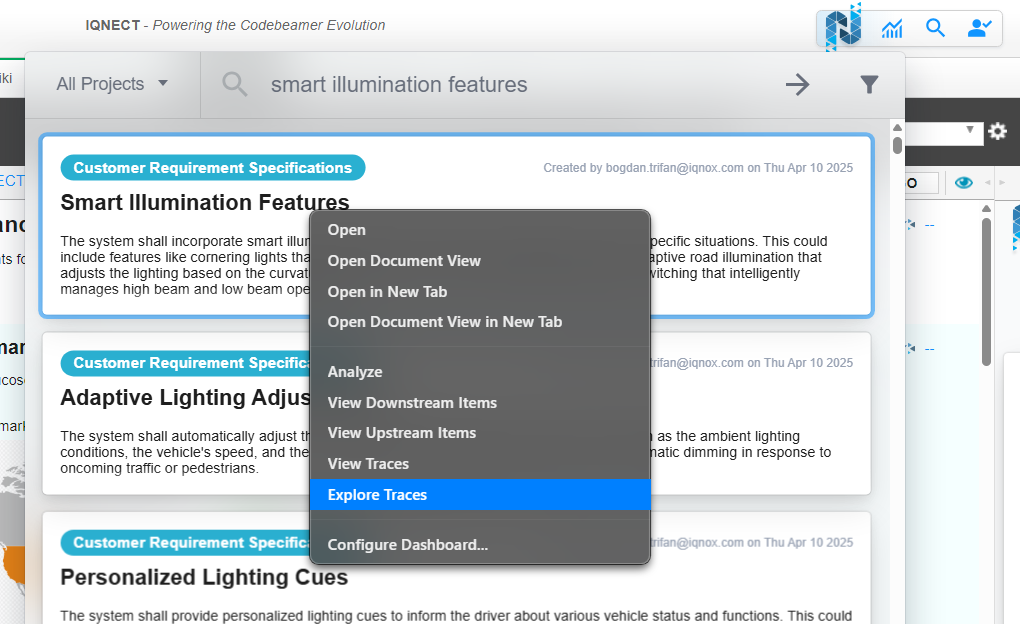
With this feature, IQNECT users can right-click on any resource to open a dynamic trace diagram that starts with that resource. From the diagram, users can expand upstream and downstream traces iteratively, isolate specific trace paths, and use an improved interface with zoom and preview capabilities.
The Explore Traces feature is available from the right-click menu on any resource displayed by IQNECT. This feature makes it possible to view the resources related to the source item by expanding traces one by one, for that resource and any other related resource.
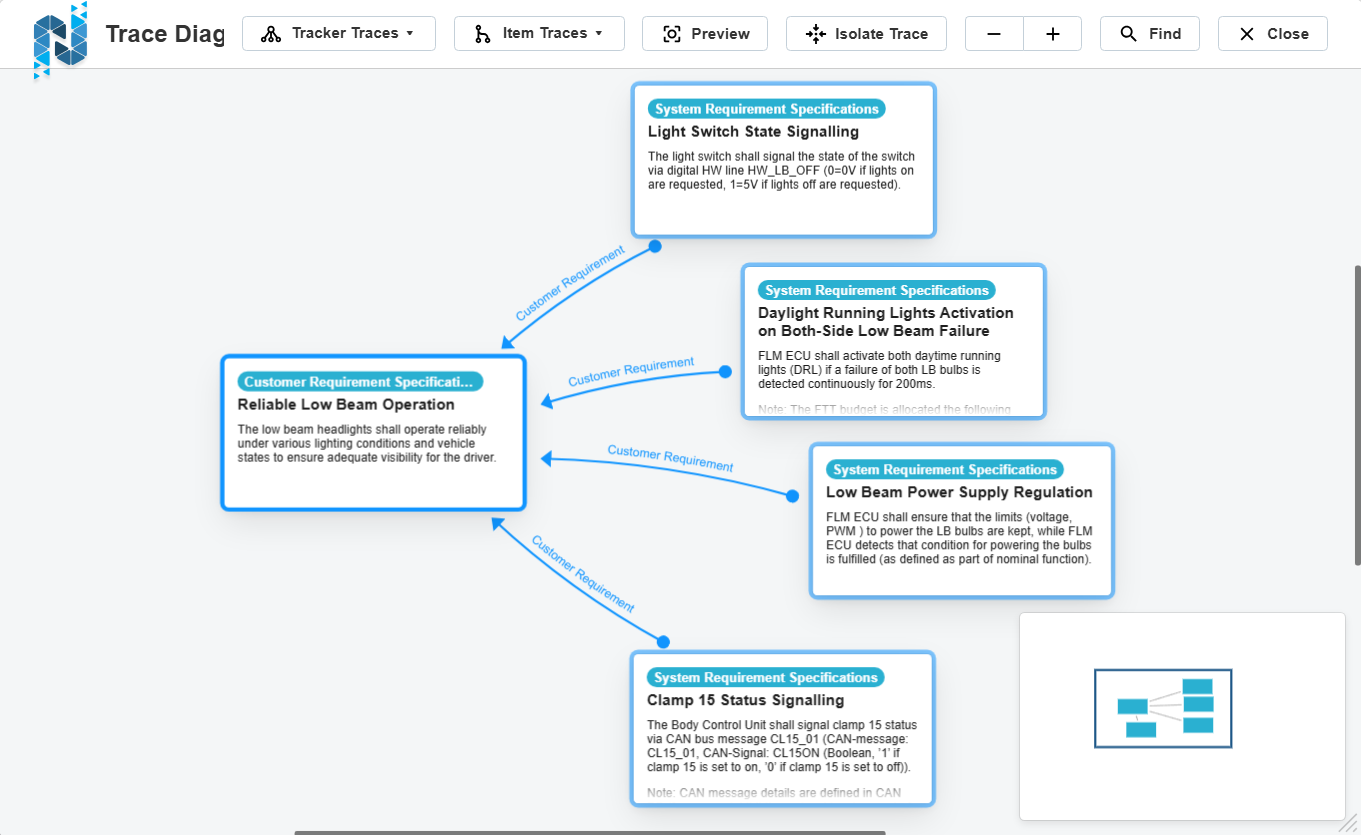
When traces are explored for a resource, a trace diagram opens with just that resource. From there, users can use the UI to expand any of that resource's upstream or downstream traces to add more resources. This can be repeated for those newly added resources to create an arbitrarily deep trace diagram. Traces can be expanded from each resource at a time or at the tracker level. The traces menu can be quickly opened for a resource by pressing ENTER while a resource is selected.
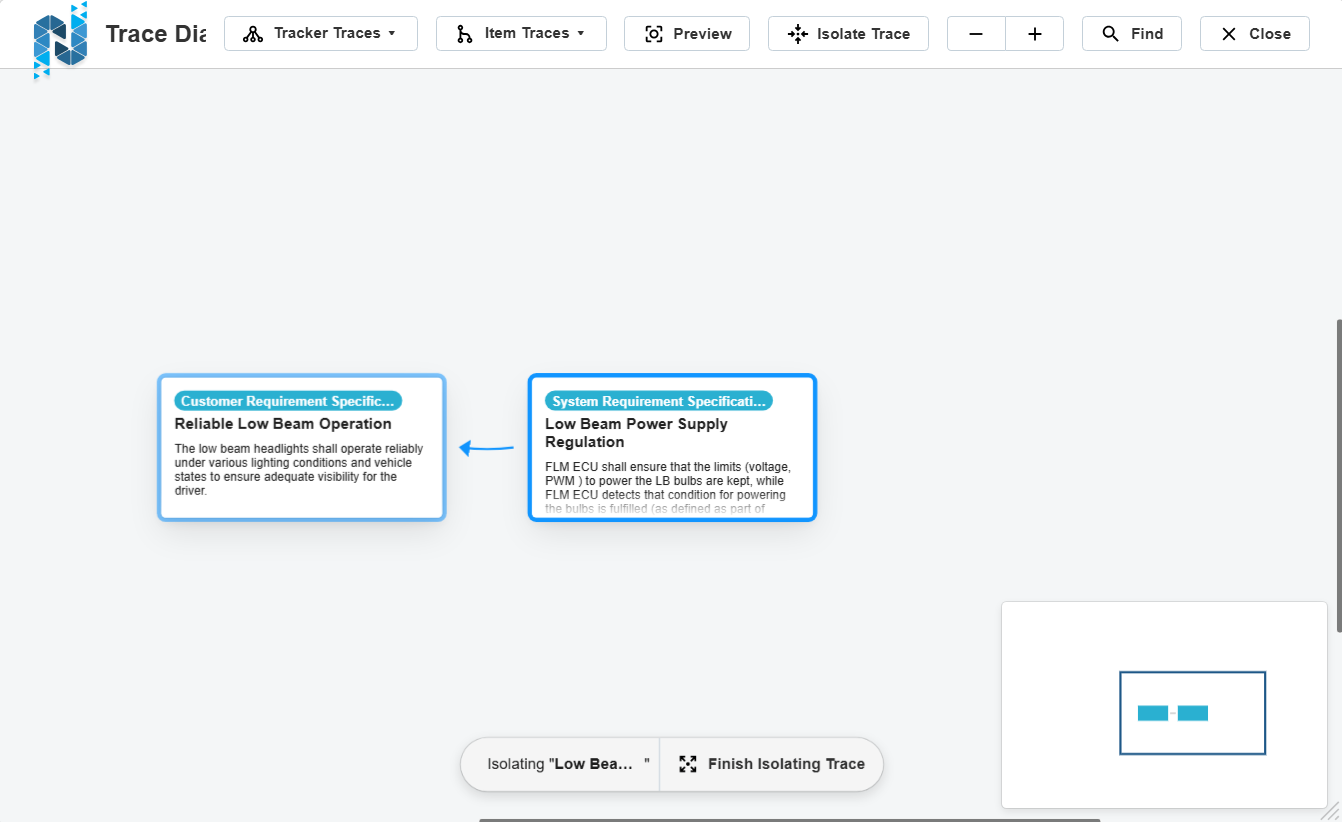
For any resource, users have the ability to Isolate Traces, which temporarily removes all resources and traces not on that resource's upstream or downstream path. Isolate traces can also be quickly enabled by selecting an item and pressing CMD/CTRL + I, and then disabled by pressing CMD/CTRL + ALT + I.
Regular traces are represented by dark gray arrows, and suspected traces are represented by red arrows. In the Explore Traces view, users can right-click on a suspected trace and clear its suspected state.
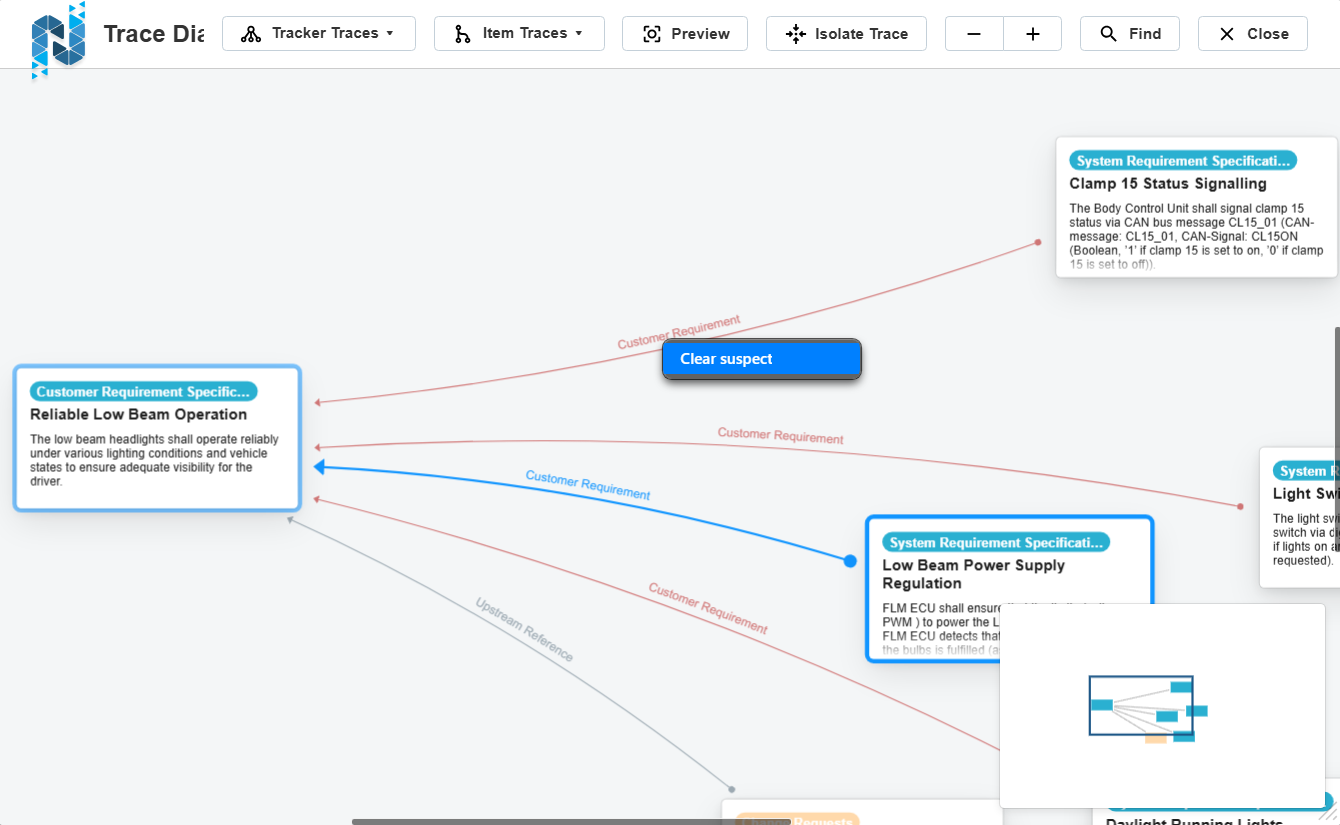
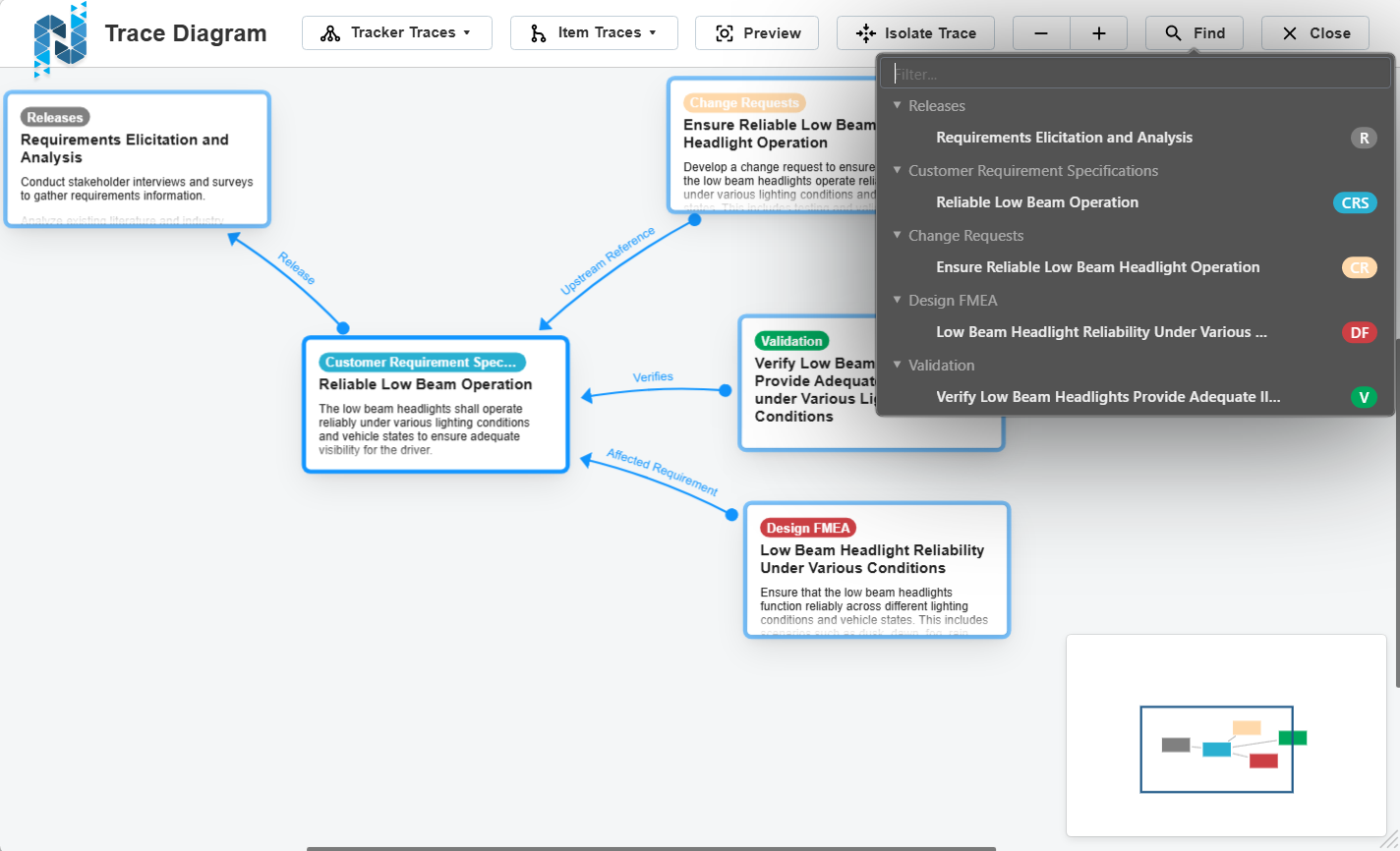
The diagram can be zoomed in or out, and a preview window can be opened to show the full description of the currently selected resource. Zooming in and out can be quickly accessed via the CMD/CTRL + + and CMD/CTRL + - keyboard shortcuts. Opening the preview can be quickly accessed by pressing the spacebar while a resource is selected.
Users have the ability to deselect the currently selected item in the trace diagram by clicking on an empty area without dragging.
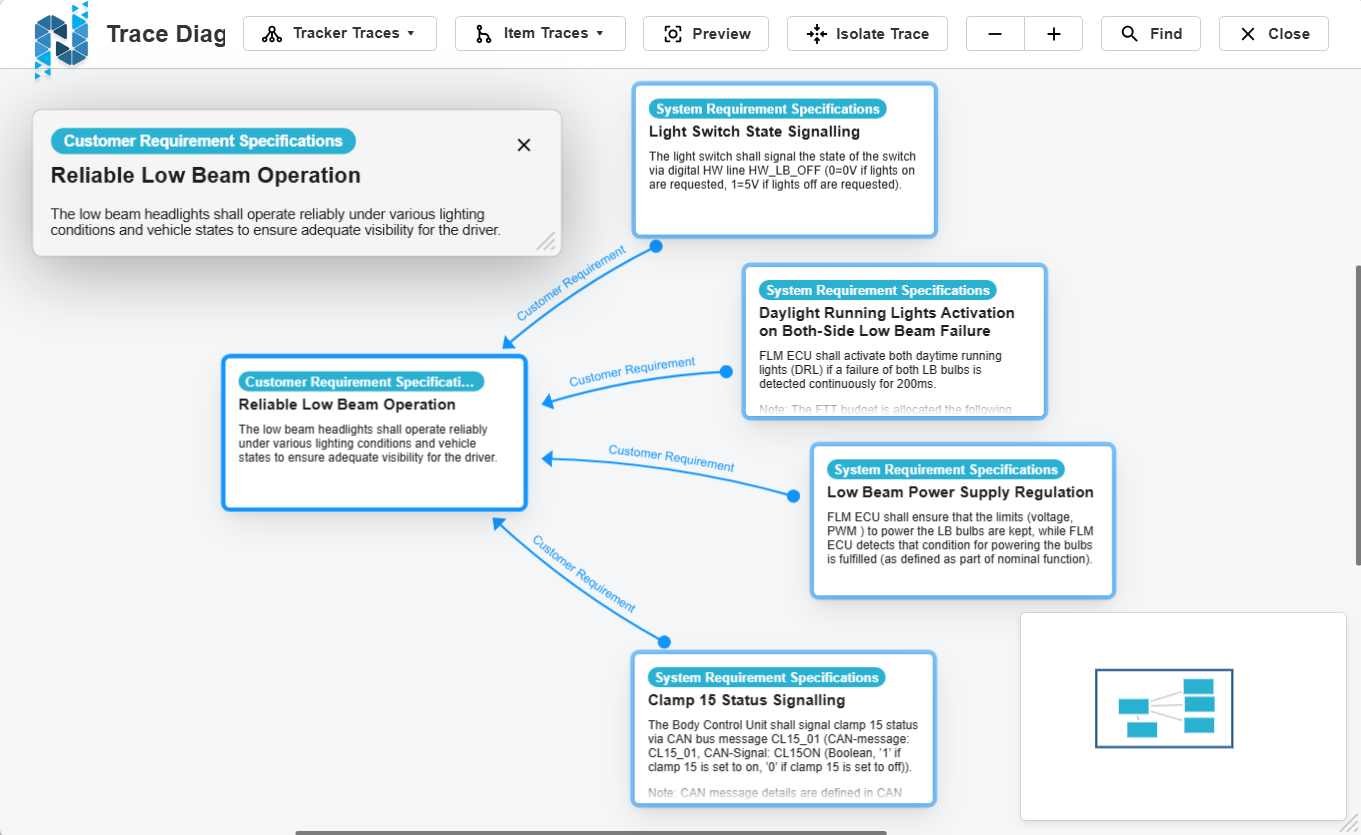
Trace Explorer has the ability to search for specific resources in a trace diagram by either clicking on the "Find" button or the CMD/CTRL + F keyboard shortcut. These will open a menu with all the resources in the diagram and a text field through which they can be filtered. Selecting an item from this menu will cause the diagram to pan to the center on that resource and select it.
Additionally, highlighting any item while a search term has been specified will cause the diagram to pan to that resource. Users can also pan the diagram by clicking and dragging on an empty spot in the trace viewer.